No sound from one output — even though everything else works
The picture is always the same: the session is running, the levels in Hypnotika are moving, everything behaves as usual — and at the other end there is silence. Usually it hits exactly one output, say the client's headphones, while your own speakers play fine.
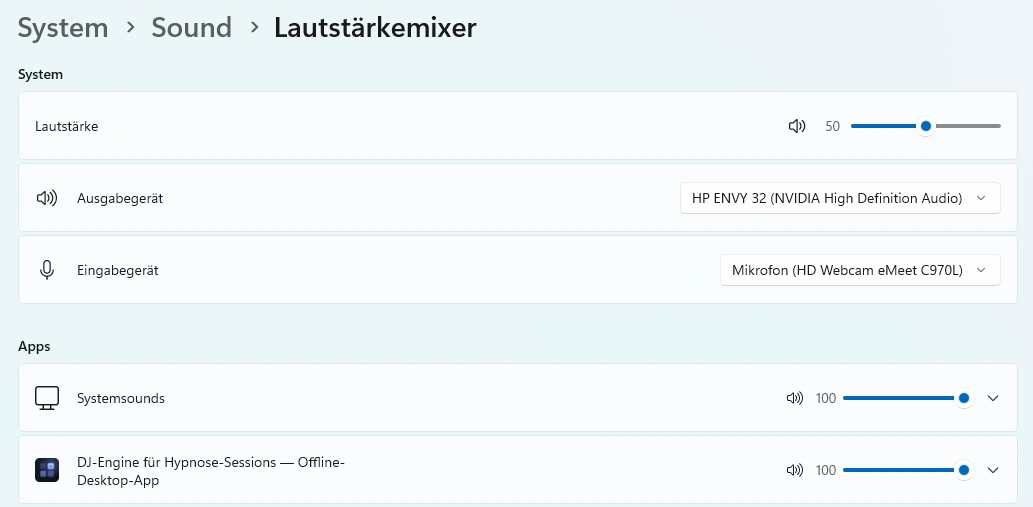
The most common cause is not the app but the Windows volume mixer. It keeps volume per application and per output device. If Hypnotika sits at 0 % on that one device, the audio arrives — and is turned down to nothing before it reaches the headphones.
Why this is so hard to spot
Because every single observation seems to argue against Windows:
| What you observe | What you conclude | Why that is wrong |
|---|---|---|
| The browser plays fine through the same device | Device is fine — so it must be the app | The browser has its own entry in the mixer |
| Windows system sounds are audible | Device is fine | System sounds also have their own entry |
| Other programs sound normal | Device is fine | Every program has its own slider on every device |
| Device volume looks normal, nothing is muted | Windows is fine | It was the application volume that was down, not the device's |
| The level meter in Hypnotika is moving | So the app is producing sound | True — the loss happens after that |
On top of that, the small volume flyout in the taskbar only ever shows the currently active device. The one slider sitting at zero is therefore practically invisible.
How to find it
- Hypnotika has to be running and producing sound — so start a session before you look. Programs that are currently silent do not appear in the mixer at all.
- Right-click the speaker icon in the taskbar → „Open volume mixer". Alternatively: Settings → System → Sound → Volume mixer.
- Pick the right output device at the top. This is the decisive step — the sliders below apply to that device only.
- Under „Apps", pull Hypnotika's slider back up.
Check your other programs too
This is not a Hypnotika problem but a quirk of Windows. On the very machine where we ran into it, Adobe Premiere was also sitting at 0 % on one of the output devices — and at 100 % on all the others. So if another program is silent through that same device: same slider, same cause.
Hypnotika now tells you
Since the 18 August 2026 build the app checks this itself. Under Settings → Audio & Hardware, right next to the output devices, you will find either a warning box „Windows has muted Hypnotika" naming the device and the value — or a quiet line reading „Windows volume for Hypnotika checked (n devices) — nothing muted."
Two limits, so the expectation is right:
- The app only checks itself. It cannot see whether some other program is muted somewhere.
- The app changes nothing in your Windows settings. It tells you and points the way — you move the slider. That is deliberate: software that quietly reaches into other people's settings creates exactly the puzzles this page is about.
On an older build that line is not there yet — the current one is here.
BPM detection doesn't run or hangs
BPM/key analysis runs in a background thread — the app stays fully usable, and on first launch a banner shows the progress. If values are missing or look wrong:
- Doubletime errors (e.g. 140 instead of 70 BPM) are corrected automatically. If one slips through, use "Halve BPM" / "Double BPM" in the track drawer — or set the value by hand in the track editor (edit pencil). That also covers ambient tracks without a clear beat.
- Tracks without values: use the "Re-analyse" button in the library.
- Check the file format: analysis supports MP3, WAV, FLAC, M4A (AAC) and OGG Vorbis. Convert other formats (WMA, AIFF, Opus in OGG containers) to MP3 / WAV with Audacity or fre:ac if needed.
- For very short files (< 30 s) the BPM result is unreliable — the model needs enough bars to recognise a pattern.
Audio stutters or drops out
Dropouts are usually caused by an overloaded CPU, a too-small audio buffer or competing audio apps.
- Close other audio applications (Spotify, browser videos, DAWs). They tap into the same audio stack.
- Check CPU load in Task Manager (
Ctrl+Shift+Esc). Continuously > 80 % → the machine is under load. - In Hypnotika: raise Settings → Audio → Buffer size from 256 to 512 or 1024 samples. Larger buffer = more stable, minimal extra latency.
- Set the Windows power plan to "High performance" — on laptops in particular, "Balanced" throttles the CPU under load.
- Update the audio drivers (Realtek, Intel SST). Outdated drivers are a classic cause.
Tracks disappear after a restart
The symptom "library empty after app start" points to a problem with the locally stored app data.
- The app data lives in
%APPDATA%\Hypnotika TranceDeck. Check that your Windows user has write access there: right-click the folder → Properties → Security → enable "Full control". Hypnotika never needs admin rights for this. - Antivirus software may quarantine files in this folder. Add the path as an exception.
- Backup: back up the whole
%APPDATA%\Hypnotika TranceDeckfolder before larger experiments. - If nothing helps: create a diagnostic report (see Diagnostic report) and send it to support.
Stream Deck doesn't respond to key presses
If the six hotkeys fall into the void, another application has usually already taken the same combination.
- Check that Settings → Stream Deck / macro controller → Global hotkeys is really enabled.
- Test the hotkeys on a normal keyboard (
Ctrl+Alt+F1toF6). Does the app respond? If yes, the issue is in the Stream Deck software configuration. - Shortcut conflicts: graphics drivers (NVIDIA GeForce Experience, Intel Graphics Command Center) often claim
Ctrl+Alt+F1–F4. Disable those hotkeys in the respective tool. - Hypnotika doesn't need admin rights. But: if a program launched as administrator currently has focus, Windows blocks global hotkeys for normal apps. Close that program or run it without admin rights.
- USB issues: plug the Stream Deck into another USB port, restart the Elgato software.
Microphone doesn't work — no level in the VU meter
- Windows microphone permission:
Windows Settings → Privacy & Security → Microphone. Make sure "Allow apps to access your microphone" is on and "Desktop apps" too. - Right device chosen? The cockpit shows the name of the active microphone device at the bottom left — if it says your webcam mic instead of your headset, switch it in Settings → Microphone → Microphone device. Headset mics sometimes show up as two entries (Bluetooth HFP vs. HSP) — one of the two is the right one.
- The microphone level meter runs at all times — even without a recording or music playing. If it doesn't react when you speak, the device or the permission is wrong. If no voice arrives for around 45 seconds during a recording, Hypnotika additionally warns you by itself with a red message that includes the device name.
- Test system-wide:
Windows Settings → System → Sound → Input. The input level should react when you speak into it. If it doesn't, the problem is at Windows level, not Hypnotika. - Interface users: turn on phantom power (48 V) if using a condenser mic.
- For USB mics: try another port. Some USB hubs don't deliver enough power.
Session recording is missing after the session
- Check whether recording is enabled in the settings — it may be deliberately off if an external tool (e.g. OBS) handles the recording. See audio setup.
- Recording folder:
%USERPROFILE%\Documents\Hypnotika\Sessionsor the path set in the settings. Explorer can hide hidden folders — enable "Show hidden items". - Recordings only start with a running session — i.e. as soon as music or a nature sound is playing. Just previewing doesn't start a session, so nothing is recorded.
- The MP3 is only saved on soft stop — a session ends exclusively that way. If you merely fade out the nature sound by clicking its tile, the timer and the recording deliberately keep running. Details: Session recording.
- Disk full? The recording stops without an error message if less than 500 MB is free.
Pitch shift sounds weird or distorted
Hypnotika uses SoundTouchJS for pitch shift without tempo change. It's a CPU-friendly library, but hits its limits on extreme shifts.
- Recommended range: ±3 semitones. Up to ±5 semitones still acceptable. Above ±7, artefacts become clearly audible (phasing, metallic chirping).
- For heavily vocal tracks (choir, singing) the pitch limit is lower than for instrumental music. Vocal formants get warped.
- Alternative: pitch-shift the original audio in an external tool (Audacity, Adobe Audition) and import it as a new track. Better algorithms are available there (Élastique Pro, Rubber Band).
- For precise key adjustment: enter manual pitch values instead of the automatic Camelot Wheel correction.
App doesn't start or closes immediately
- Windows SmartScreen may block the EXE. "More info" → "Run anyway".
- Antivirus (Windows Defender, Kaspersky, Norton) sometimes mistakes new, not-yet-widespread apps for malware. Add an exception for Hypnotika TranceDeck.
- VC++ redistributable: the audio modules need Visual C++ 2019+. Installer: aka.ms/vs/17/release/vc_redist.x64.exe.
- If nothing helps: describe to support what exactly happens after the double-click. If the app at least starts briefly, also create a diagnostic report (see Diagnostic report) and attach it.
Language switching DE/EN doesn't take effect
- Hard reload inside the UI: enable developer mode (Settings → Advanced → DevTools), then
Ctrl+Shift+R. - The language is saved per session. If you land on the old language again on the next launch, that probably points to a write-permission issue on the app data folder
%APPDATA%\Hypnotika TranceDeck— see "Tracks disappear". - The website language switch (DE/EN in the top right) is independent of the app language. Both are stored separately.
Problem not listed?
Create a diagnostic report in the app (Settings → Diagnostics → "Create diagnostic report", guide: Diagnostic report) and attach it. You'll find an email address in the imprint. The more specific the description (exact step, error message, Windows version), the faster the reply.