1 · Prerequisites
- VB-Cable installed (free virtual audio router) — see VB-Cable guide
- Headset or studio headphones for you — no speakers, otherwise echo loop
- Zoom desktop client (not browser version, limited audio options)
- Client has headphones — critical for stereo trance effect
2 · Audio routing concept
- Hypnotika plays via two outputs simultaneously:
- Main output: your studio headphones
- Secondary output: VB-Cable Input (virtual mic)
- Zoom reads VB-Cable Output as its mic source
- Plus: your real mic also goes into VB-Cable (Hypnotika mic-bus → VB-Cable)
- Client receives mix of music + voice via Zoom audio
3 · Hypnotika settings
- Settings → Audio devices
- Main output: your headphones
- Secondary output: „CABLE Input (VB-Audio Virtual Cable)"
- Microphone: your real mic (USB or headset)
- Enable „Hear myself" in mic section
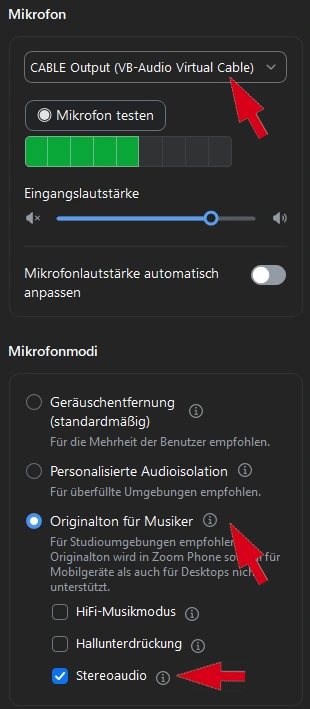
Note on screenshots: the screenshots on this page are from the German Zoom interface. The setting names and toggle positions are identical in the English Zoom interface — labels translate as: „Geräuschentfernung" = Noise removal · „Originalton für Musiker" = Original sound for musicians · „Stereoaudio" = Stereo audio · „HiFi-Musikmodus" = High-fidelity music mode · „Hallunterdrückung" = Echo cancellation · „Mikrofonlautstärke automatisch anpassen" = Automatically adjust microphone volume.
B) Zoom: navigate to audio settings
In a Zoom meeting bottom left: small arrow next to the audio mic icon → „Audio Settings". Or Zoom main window → Settings → Audio.
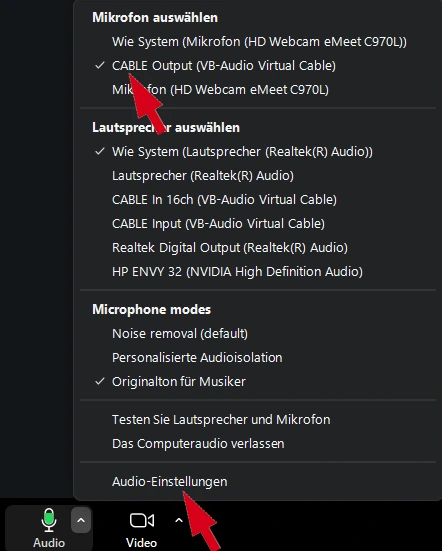
C) Zoom audio settings — optimal configuration
This table shows the optimal setup for hypnosis with Hypnotika TranceDeck. The On/Off column is the recommendation — the rationale explains why:
| Setting | Recommendation | Rationale |
|---|---|---|
| Microphone | CABLE Output | Receives the Hypnotika mix (music + voice + anchors). |
| Speaker | Headphones | So you hear the client without echo back into your microphone. |
| Automatically adjust microphone volume | ❌ OFF | Otherwise Zoom pumps your level up and down — trance voice feels restless. Adjust manually. |
| Microphone mode → „Original sound for musicians" | ✅ active | In the default „Noise removal" mode, Zoom filters out the background music as „noise", and the client only hears your voice. |
| ↳ Stereo audio | ✅ ON | Singing bowls and stereo effects are transmitted correctly. |
| ↳ High-fidelity music mode | ❌ OFF | Would raise bandwidth and latency — not needed for hypnosis. |
| ↳ Echo cancellation | ❌ OFF | Would filter out our own Hypnotika reverb. |
Alternative: „Live performance audio" — newer Zoom option (under observation)
Zoom now offers a separate „Live performance audio" toggle in the audio profile section that automatically sets all microphone modes to optimal-for-music — functionally similar to our recommendation above, but as a single switch.
| Aspect | „Original sound for musicians" (current recommendation) | „Live performance audio" (newer option) |
|---|---|---|
| Setup effort | Several toggles to set right (see table above) | Single toggle |
| Works one-sided (only you activate) | ✅ Yes, confirmed | ⚠ Probably yes, practice tests still ongoing |
| Compatibility with older Zoom versions / Mobile | ✅ Stable for years | ⚠ Relatively new, not in every client |
| Current recommendation | ✅ Use this variant | Optionally try, under observation |
We currently stay with „Original sound for musicians" because it's been working reliably for years and also works with older Zoom versions + mobile clients. Once „Live performance audio" proves itself in practice tests (with real external clients, poor connections, varying Zoom versions), we'll switch. Until then: stick with the table above.
5 · Client setup (you guide them on first call)
- Client opens Zoom desktop client
- Audio settings → enable „Send original audio" for themselves
- Headphones on — no speakers
- Mute their own mic during trance — otherwise their breath rides on the music
6 · Common issues
- Client hears music tinny or filtered → Zoom noise suppression too high. Set to Low/Off.
- Echo / feedback → you have speakers instead of headphones, or „Hear myself" with open speakers.
- Music only one-sided → stereo audio not enabled in Zoom
- Client hears nothing → secondary output not set to VB-Cable Input, OR Zoom mic not on VB-Cable Output
Related: VB-Cable install · Audio setup