Note on screenshots: the screenshots on this page are from the German Teams interface. The setting names and toggle positions are identical in the English Teams interface — the labels translate as: „Räumliches Audio" = Spatial Audio · „Rauschunterdrückung" = Noise Suppression · „High Fidelity-Musikmodus" = High Fidelity Music Mode · „Echounterdrückung aktivieren" = Echo Cancellation.
1 · Prerequisites
- VB-Cable installed (free virtual audio cable)
- Microsoft Teams Desktop app (Web variant has limited audio options)
- Hypnotika TranceDeck secondary output set to
CABLE Input (VB-Audio Virtual Cable)
2 · Audio routing concept
Your real microphone
        ↓
[Hypnotika TranceDeck — mixes mic + music + anchors]
        ↓
[Secondary Output → CABLE Input (VB-Audio Virtual Cable)]
        ↓
[Teams receives CABLE Output as „microphone"]
        ↓
Client hears in the call: music + your voice + anchor sounds
3 · Step by step
A) Hypnotika settings
- Settings → Audio → Primary Audio Output: your headphones / speakers (what you hear)
- Settings → Audio → Secondary Audio Output:
CABLE Input (VB-Audio Virtual Cable) - Settings → Microphone → Input: your real microphone (NOT „CABLE Output"!)
- Settings → Microphone → Microphone on
B) Teams: navigate to audio settings
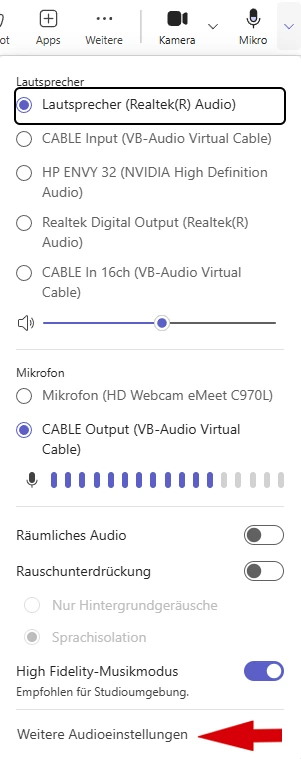
In a Teams meeting: top right, click the arrow next to the microphone icon → at the bottom „More audio settings":
C) Teams audio settings — optimal configuration
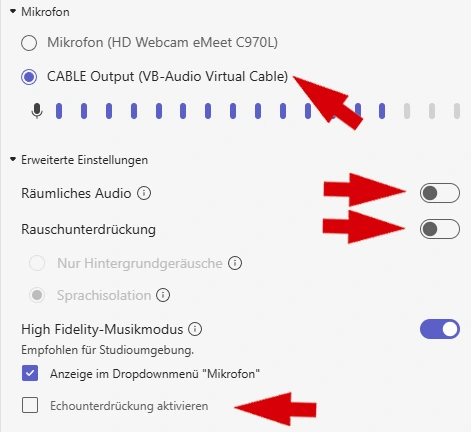
This table shows the optimal setup for hypnosis with Hypnotika TranceDeck. The On/Off column is the recommendation — the rationale explains why:
| Setting | Recommendation | Rationale |
|---|---|---|
| Microphone | CABLE Output | Receives the Hypnotika mix (music + voice + anchors). |
| Spatial Audio | ❌ OFF | We have our own reverb in Hypnotika. Spatial effects from Teams interfere. |
| Noise Suppression | ❌ OFF | Would otherwise filter out background music as „noise". Client would only hear voice, no music. |
| High Fidelity Music Mode | ✅ ON | Gives music + voice full bandwidth + stereo. Studio quality for the client. |
| Echo Cancellation | ❌ OFF | In a VB-Cable setup there's no physical echo (no acoustic path between mic and speaker). Echo filter could interpret music as „echo" and dampen it. |
| Show in Microphone dropdown | either | Pure convenience option. No audio effect. |
D) Client setup (briefly explain on first appointment)
- Client opens Teams in the Desktop app (Web variant may have fewer audio options)
- Headphones on — no open speakers
- Mute their own microphone during trance — otherwise their breathing rides on the music
- If client wants to keep their session: Hypnotika gives you the MP3 — you can hand it over for take-home listening
4 · Test before first session
Before the first client session, test with a friendly call (family, colleague as test client):
- Does test-client hear the music clearly?
- Music vs. voice level balance correct?
- Do anchor sounds come through?
- When client unmutes their mic: do you hear them clearly?
5 · Common problems
- Client hears no music, only voice → Noise Suppression is ON. Set to OFF.
- Music sounds compressed or chopped → High Fidelity Music Mode is OFF. Turn ON.
- Echo / feedback → You're using speakers instead of headphones. Headphones on.
- Music only mono → in Teams, Stereo is part of High Fidelity Music Mode, so turning that ON is enough.
- Client hears nothing → Hypnotika secondary output not set to VB-Cable Input, OR Teams microphone not set to VB-Cable Output.
6 · Teams vs. Zoom — which is better?
Both work. Practical experience with Hypnotika:
- Teams: fewer microphone-mode options than Zoom (just one „High Fidelity" toggle), but quicker to configure
- Zoom: more granular, but several toggles to set right — see our Zoom guide
- Client acceptance: in practice the client picks the tool their employer or insurance knows — Zoom is slightly more common in coaching/therapy contexts
Related: Zoom setup · VB-Cable install · Hypnotika audio setup